
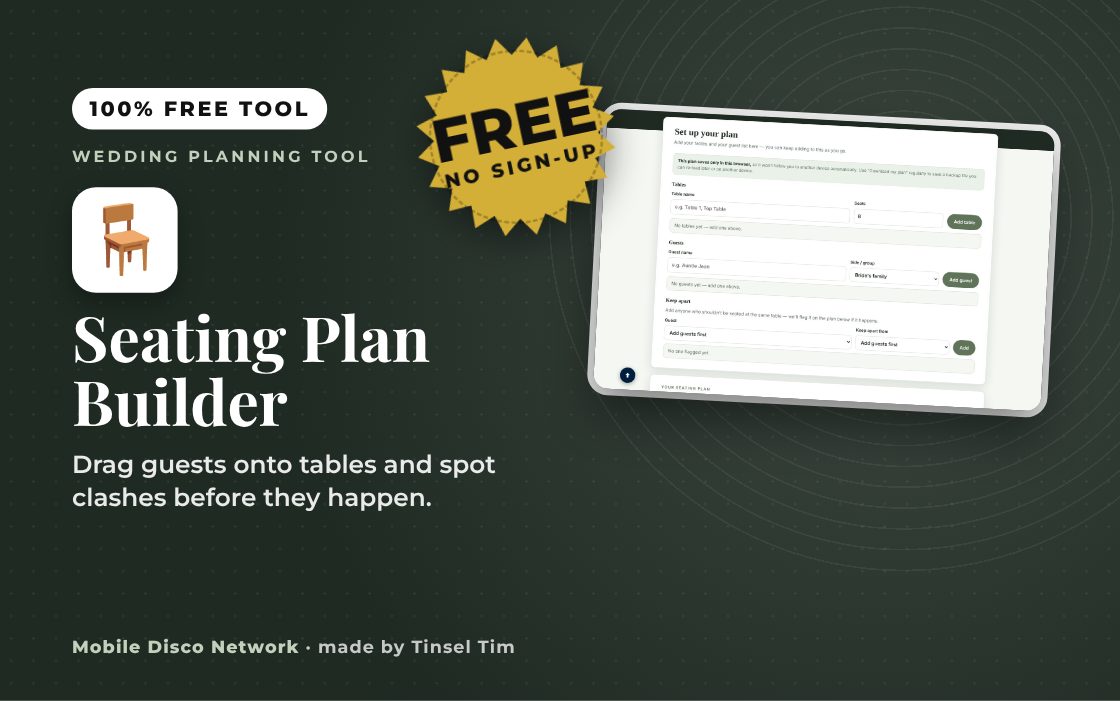
Set up your plan
Add your tables and your guest list here — you can keep adding to this as you go.
Tables
Guests
Keep apart
Add anyone who shouldn't be seated at the same table — we'll flag it on the plan below if it happens.
Drag guests onto a table
Add a table and a few guests above to get started.
Quick guide
How to build your wedding seating plan
- Add each table with a name and number of seats using Add table.
- Add each guest with Add guest, choosing which side or group they belong to.
- Set any Keep apart pairs, then drag guests onto tables or tap a guest and then a table.
- Use Copy my plan, Print / Save as PDF or Download my plan to keep it.
What it does
- Drag and drop, or tap on mobile
- Guests grouped by family and friends
- Keep-apart rules with clash warnings
- Saves your plan in your browser
- Download and reload plan files
- Copy, print or save as PDF
Use it with
- Late-Night Taxi & Minibus Planner – work out how many taxis or minibuses your guests need after the party, when to pre-book, and how pickups line up with your finish time
- Invitation Wording Generator – fill in names, hosts, venue and date to get UK wedding invitation wording in a formal or relaxed tone, ready to copy into your stationery
- Guest Accommodation Finder – search for hotels and B&Bs near your wedding venue, keep a shortlist to share with guests and work through a group rate booking checklist
- Thank You Note Generator – add wedding guests one at a time with their gift and a personal detail, and get a warm or formal thank you note for each
Questions
Seating Plan Builder: common questions
Who is the seating plan builder for?
It is for couples planning a wedding breakfast who want to see the tables take shape before committing to a printed plan. Guests are tagged as the bride's family, groom's family, the bride's friends, the groom's friends or work and other, which helps balance tables. It works on a laptop with drag and drop or on a phone by tapping.
How do I share the plan with my venue?
Press Print / Save as PDF to make a copy for the venue or caterer, or Copy my plan to paste the table lists into an email. Download my plan saves a file you can open later with Load a saved plan, which is handy if you want to carry on working on another computer.
Where is my seating plan stored?
Your tables, guests and keep-apart rules are saved automatically in your browser's local storage on the device you are using. They are not uploaded to the website. The Send this to Tim link only opens your own email app with the plan written out, and nothing is sent unless you choose to send that email.
How do I handle guests who should not sit together?
Add them as a Keep apart pair before you start seating people. If you then put both on the same table, the plan flags it so you can move one. It is also worth thinking about who needs to be near the exits or toilets, and keeping older relatives away from the speakers and dancefloor.
Tim’s tip
Seat older guests a little away from the speakers and dancefloor, and put your keenest dancers nearest to it. It makes a real difference to how quickly the floor fills after the meal.

Made by Tim Daymond (Tinsel Tim). Tim has been a DJ since 1976 and has run Mobile Disco Network since 2013. He plays weddings and parties across Norfolk, Suffolk, Cambridgeshire and Lincolnshire. He is a Norfolk County Council Trading Standards Trusted Trader (ID 0000457), a member of the NADJ and the winner of 23 independent awards.
Why choose Tim · Awards · Reviews
Your privacy: this tool runs in your browser. Nothing you type is sent to Mobile Disco Network or stored on a server. Your work is saved in this browser only, so it is there when you come back. Clearing your browser data removes it. Email buttons only open your own email app, and nothing is sent until you press send.
Free to use, no sign-up. Last reviewed 11 October 2026.
Tables sorted?
Now the dance floor
Tim plays background music through the meal, then gets everyone up once the tables are cleared. Book Tinsel Tim across Norfolk, Suffolk, Cambridgeshire and Lincolnshire.
Rather talk it through? Call Tim on 07796 565918 or 01760 722283, or message him on WhatsApp.
Your Wedding Toolbox
More free tools to help plan your day.
Planning the big day? Check Tinsel Tim is free on your wedding date. Check your date → WhatsApp Tim