
Design your labels
Work down the steps on the left — the label sheet updates live on the right. The grey outlines show where the labels are; they don’t print.
Planning an event?
Labels done — now book the entertainment
Tim and Mobile Disco Network provide the DJ, lighting and photo booth for weddings, birthdays and parties across Norfolk, Suffolk, Cambridgeshire and Lincolnshire.
Rather talk it through? Call Tim on 07796 565918 or 01760 722283, or message him on WhatsApp.
Quick guide
How to make printable round labels
- Choose the Type of label and your label sheet, checking the code on the packet.
- Start from an idea and type your words, or paste your list for address labels or name badges.
- Pick a style, lettering, seal and colour theme.
- Press Download a test sheet first, check the alignment, then Download print-ready PDF.
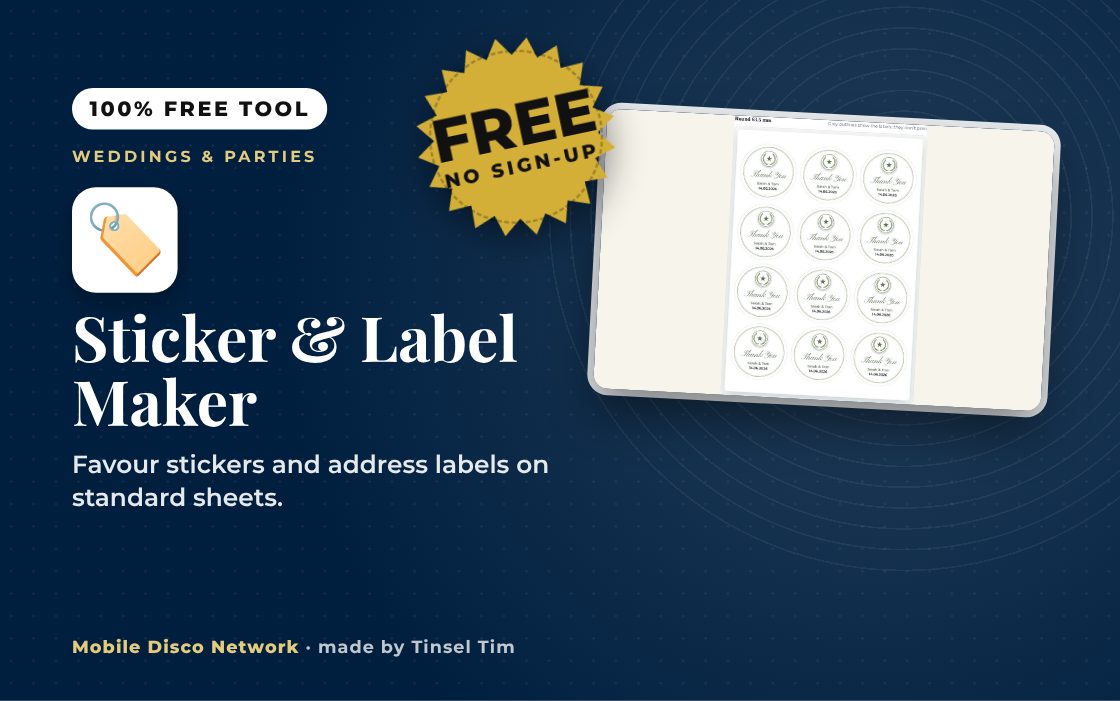
What it does
- Favour, bottle, address and name labels
- Seven standard sheets or your own sizes
- Address labels and name badges from a list
- Three styles, lettering and seals
- Test sheet, start label and nudges
- Print-ready PDF or JPG download
Use it with
- Thank-You Card Maker – paste your guest list with each person's gift and print a personalised thank-you card for each, with an optional photo, or download images to send
- Signs Pack Maker – pick a ready-made pack of event signs for a wedding, party or Christmas do, edit the wording and download them in one matching design
- Guest Book Card Maker – print guest book cards for a jar, with prompts for advice, wishes, date night ideas, memories and song requests, plus an optional matching table sign
- Drinks Token Maker – make printable numbered drinks tokens for your guests, with several token types, spares and an optional maximum bar cost worked out from your prices
Questions
Sticker & Label Maker: common questions
What can I make with the sticker and label maker?
You can make favour stickers and envelope seals, bottle and jar labels, address labels from a pasted list and name badges from a list. Labels are designed in your colours and lined up for common A4 sheets, including Avery L7160, L7163, L7165 and L7651 and three round sizes, or a sheet you measure yourself.
How do I make sure the labels line up?
Download the test sheet, print it on plain paper at Actual size or 100%, hold it against a label sheet up to the light and check the outlines match. Use the nudge settings to move the design if needed. If you have already used some labels, set Start at label number to the first empty one.
Are my address lists stored or uploaded?
No. The labels are made in your browser, and the PDF and JPG files are created on your own device. The page does not send your addresses or names to any server and does not save them, so keep your list somewhere safe and download the PDF before closing the page.
How many favour stickers should I print?
Count your favours, envelopes and jars, then add a few spares for mistakes and late additions. Labels from different makers can vary by up to about 1 mm, so print the test sheet before using a full pack. Use How many labels? or Copies of each to set the count, and Start at label number to use up part-used sheets.
Tim’s tip
Print labels a week or two before the event, not the night before. That leaves time to buy more label sheets or fix a typo, which is much harder when everything else is happening at once.

Made by Tim Daymond (Tinsel Tim). Tim has been a DJ since 1976 and has run Mobile Disco Network since 2013. He plays weddings and parties across Norfolk, Suffolk, Cambridgeshire and Lincolnshire. He is a Norfolk County Council Trading Standards Trusted Trader (ID 0000457), a member of the NADJ and the winner of 23 independent awards.
Why choose Tim · Awards · Reviews
Your privacy: this tool runs in your browser. Nothing you type is sent to Mobile Disco Network or stored on a server. Nothing is saved once you close the page.
Free to use, no sign-up. Last reviewed 11 October 2026.
Did this help?
Leave Tim a review
If this tool helped with your celebration planning, we’d love a quick review — whether you’ve booked Tim or not. It helps him keep this toolbox free and build more tools like it.
Leave a review →Planning an event? Check Tinsel Tim is free on your date. Check your date → WhatsApp Tim